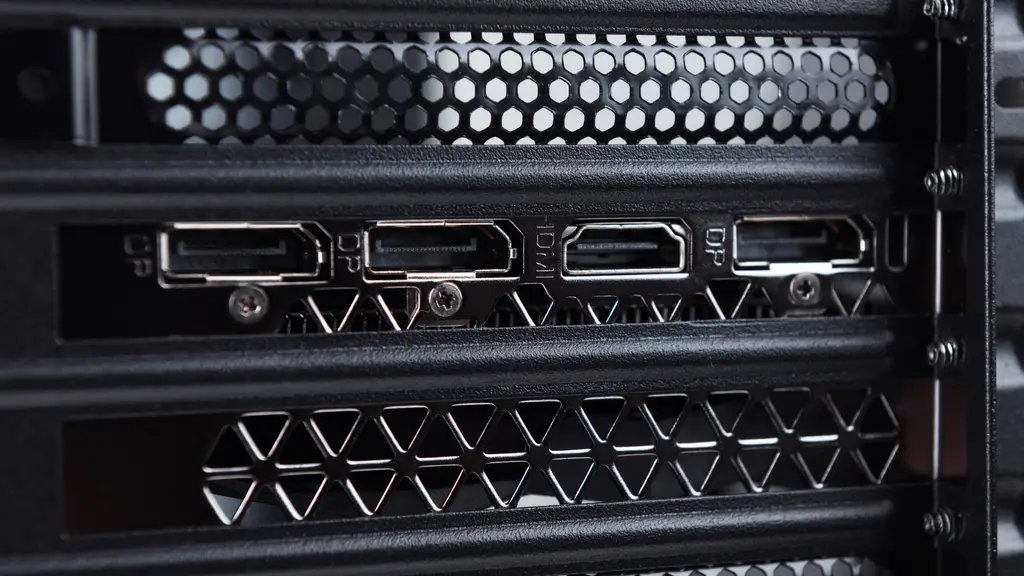
Your monitor may be plugged into the motherboard rather than a dedicated graphics card. Engadget’s author says that can slow down games, and the fix is as simple as swapping a cable.
Details were published by Engadget.
Many PCs have HDMI, DisplayPort and USB-C monitor connections in two places: on the motherboard and on the graphics card. The same cable fits either set, so it’s easy to pick the wrong one. If your PC has a dedicated graphics card, the monitor should normally connect to it. Motherboard outputs typically use integrated graphics built into the CPU, if the chip has them.
Why plugging into the motherboard can hurt gaming
Integrated graphics handle basic tasks and lighter games well, but usually can’t match a dedicated card. If Windows runs a game on integrated graphics, you don’t get the performance your dedicated GPU offers.
Connecting to the motherboard doesn’t always fully sideline the dedicated card. In some Windows setups, the card still renders the game and passes frames through integrated graphics, which can add overhead. Microsoft doesn’t publish a percentage performance loss for this setup, and the impact depends on the hardware, so some gamers never notice the problem.
For others, the monitor simply stays dark. Motherboard outputs don’t work with Intel desktop processors with an F or KF suffix, because those chips lack integrated graphics. Some PCs also disable integrated graphics when a dedicated card is installed, so a blank screen doesn’t necessarily mean the graphics card has failed.
How to find the right port and set the refresh rate
Graphics card ports are usually easy to spot. Motherboard outputs sit alongside the USB, Ethernet and audio ports. The graphics card has its own outputs on a separate expansion bracket, typically lower on the back of a standard tower. They’re often horizontal, but not always, so check which ports belong to the card.
Engadget’s author advises turning off the PC, moving the monitor cable to the graphics card, and selecting the matching input on the monitor. HDMI and DisplayPort both support high-refresh-rate gaming, as long as the graphics card, monitor and cable handle the resolution and refresh rate you want. If HDMI already works at the settings you need, you don’t need to buy a new cable.
In Windows 11, the refresh rate is under Settings, System, Display, Advanced display. The author stresses that a 100Hz monitor set to 60Hz shows 60 updates per second, regardless of how many frames the graphics card produces.
If the screen goes black after switching to the graphics card, try a different port on the card or a different cable. Before checking the power connectors or reseating the card, shut down the PC and unplug it. If integrated graphics stay enabled, you can also connect a second monitor to the motherboard output, depending on system compatibility.